Downloading and Exporting Data
This page describes how to download and export data from OMERO. When uploading data to OMERO the original files are always stored on the server, so if necessary these can be retrieved.
For downloading a larger amount of data it is recommended to use OMERO.insight or our Fiji plugin and preferably not over wifi to assure a good connection.
Downloading a lot of data
If you would like to export a large amount of data from OMERO, e.g. for data sharing for a publication. Please reach out to the OMERO admins. We can help using a script to export the data more efficiently.
OMERO.web Downloads
Quick Downloads
Access downloads through the OMERO web interface:
- Locate your data, select an individual image
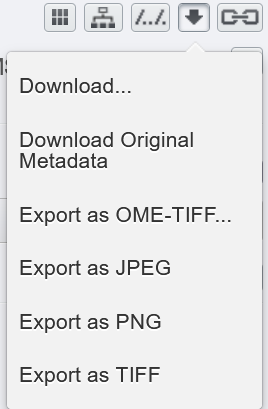
- Click the download button at the right panel
- Choose export format:
-Download...Original files
-Download Original MetadataDownload original metadata only
-OME-TIFF format
-JPEGformat
-PNGformat
-TIFFformat
Web Browser Timeout Limitation
Connections via the web browser automatically disconnect after 1 minute (60s), so often you won't be able to download large files. For larger datasets, use OMERO.insight instead.
OMERO.insight Downloads
- Launch and log into OMERO.insight
- Navigate to your dataset
- Click the download button
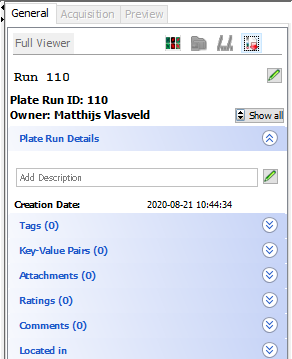
- Select export format
Downloads proceed in the background - no progress bar is shown, but the process remains active.
Fiji Downloads
Alternatively you can use the OMERO Fiji plugin for downloading data. You can find more information here